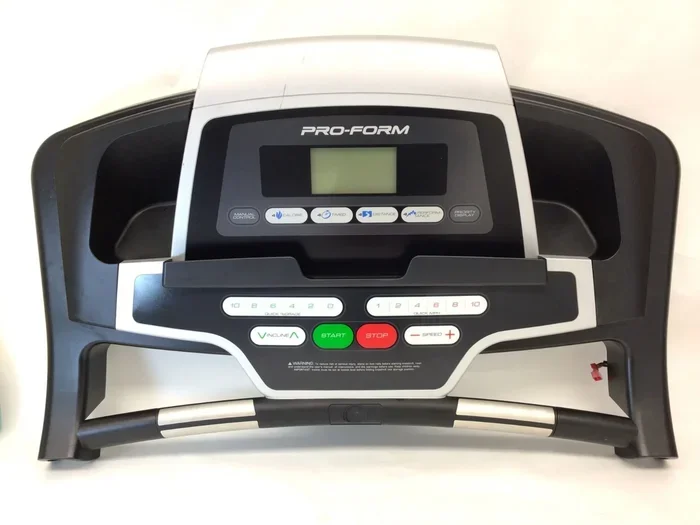
Does the Iphone Track Steps on a Treadmill
Yes, your iPhone can track steps on a treadmill using built-in motion sensors and the Health app. The iPhone pedometer counts steps by detecting movement, but indoor walking may slightly affect accuracy. You can boost tracking precision by keeping your phone in your pocket or on the treadmill console and by calibrating your fitness tracking settings.
Key Takeaways
- iPhone tracks treadmill steps: The built-in accelerometer and gyroscope detect walking motion even indoors on a treadmill.
- Health app stores your data: All step counts are logged in the iPhone Health app for easy review and goal tracking.
- Accuracy can vary: Treadmill belt movement and handrail use may reduce step count precision compared to outdoor walking.
- Placement matters: Keeping your iPhone in your pocket or clipped to your waist gives the best results for indoor step tracking.
- Calibration helps: Setting your stride length and walking speed in the Health app improves treadmill step tracking accuracy.
- Third-party apps add features: Apps like Pacer and MapMyWalk offer extra insights beyond what the native iPhone tracker provides.
📑 Table of Contents
- Does The Iphone Track Steps On A Treadmill?
- Why Treadmill Step Tracking Can Be Less Accurate
- Tips to Improve iPhone Step Tracking on a Treadmill
- Can You Use Third-Party Apps for Better Treadmill Tracking?
- How Many Steps Should You Aim for on a Treadmill?
- Common Mistakes to Avoid When Tracking Treadmill Steps on iPhone
- Final Thoughts
Does The Iphone Track Steps On A Treadmill?
If you walk on a treadmill and own an iPhone, you have probably wondered whether your phone is counting your steps. The short answer is yes. Your iPhone has built-in motion sensors that detect movement, even when you are walking indoors on a treadmill belt. But how well does it actually work? And what can you do to get better results?
This guide covers everything you need to know about iPhone step tracking on a treadmill. You will learn how the sensors work, why accuracy sometimes drops indoors, and simple tips to improve your step count. Whether you walk for fitness, weight loss, or just to stay active, this article will help you get the most out of your indoor walking workouts.
Many people ask, “Can my iPhone track my steps on a treadmill?” The answer is a confident yes. The iPhone uses a combination of hardware and software to count steps. The accelerometer detects motion, and the software interprets that motion as steps. This works whether you walk outside or on a treadmill at home.
How iPhone Step Tracking Works
Your iPhone contains a tiny chip called an accelerometer. This sensor measures changes in speed and direction. When you walk, your body moves up and down and forward. The accelerometer picks up these patterns. The iPhone software then translates those patterns into step counts.
Apple also uses the gyroscope and coprocessor to refine the data. Together, these components create a fairly reliable pedometer inside your phone. The data gets stored in the Health app, where you can view daily, weekly, and monthly step totals.
Here is what makes the iPhone a solid fitness tracking tool:
- Built-in sensors: No extra device is needed. The iPhone handles everything on its own.
- Health app integration: All step data is saved automatically and organized for easy viewing.
- Background tracking: The iPhone counts steps even when the screen is off.
- Stride length estimation: The phone can estimate how far you walk based on your step count.
- Calorie estimates: Using your step data, the iPhone calculates approximate calories burned.
So when you hop on the treadmill, your iPhone is already working behind the scenes. But the indoor environment does introduce some challenges.
Why Treadmill Step Tracking Can Be Less Accurate
Walking on a treadmill feels simple, but the way your body moves is slightly different from outdoor walking. The belt moves beneath your feet, which changes the motion pattern. This can confuse the iPhone sensors a bit. As a result, your step count may not be 100% accurate every time.
Common Reasons for Inaccurate Treadmill Step Counts
Several factors can throw off your treadmill step count. Understanding these helps you fix the problem.
Handrail gripping: Many people hold the treadmill handrails while walking. When you grip the rails, your body stays still from the waist up. The iPhone sensors only detect the motion of your legs. This can lead to missed steps or a lower total count.
Treadmill belt movement: The belt moves for you, so your feet do less work compared to outdoor walking. The iPhone may interpret this reduced effort as fewer steps.
Phone placement: Where you carry your iPhone matters a lot. If the phone is in your hand or sitting on the console, it may not pick up the walking motion properly.
Walking speed variations: Treadmill users often change speed during a workout. Sudden speed changes can throw off the sensor readings.
Indoor vs Outdoor Step Tracking: What Is the Difference?
Outdoor walking gives the iPhone a consistent motion pattern. Your body moves over ground, and the sensors read this naturally. On a treadmill, the motion is more repetitive and slightly different. The iPhone still counts steps, but the numbers may be a bit lower than your actual steps.
Here is a quick comparison:
- Outdoor walking: Full body motion, natural stride, high sensor accuracy.
- Treadmill walking: Reduced upper body motion, consistent belt pace, slightly lower accuracy.
The good news is that the difference is usually small. Most people find that their iPhone captures 80 to 95 percent of their actual treadmill steps. That is still very useful data for tracking your walking routine and progress.
Tips to Improve iPhone Step Tracking on a Treadmill
You do not need expensive gear to get better step counts on your treadmill. A few simple adjustments can make a big difference. Here are proven tips to boost your iPhone treadmill step accuracy.
1. Carry Your iPhone in Your Pocket or Armband
The best place for your iPhone during treadmill walking is in your pocket or on an armband. This keeps the phone close to your body’s center of motion. The accelerometer can read your leg movement more clearly when the phone is near your hip.
Avoid placing your phone on the treadmill console. The console stays still while you walk, so the phone misses much of the motion. If you must set it down, place it as close to the belt as safely possible.
2. Avoid Gripping the Handrails
Let your arms swing naturally while walking. When you hold the handrails, your upper body stays rigid. This reduces the overall motion the iPhone can detect. Free arm movement helps the sensors capture a fuller picture of your walking pattern.
If you need the handrails for balance, try to grip lightly. Even a light touch is better than a tight grip. Your step count will thank you.
3. Calibrate Your Stride Length
The iPhone Health app lets you set your stride length. When you enter a realistic stride length, the phone estimates distance more accurately. This also helps the step counter make better sense of your treadmill walking motion.
To calibrate your stride:
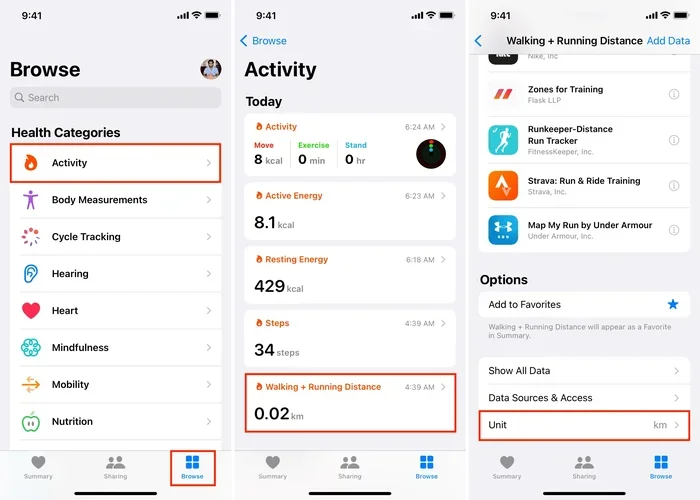
- Open the Health app on your iPhone.
- Go to the “Health Data” section and tap “Fitness Walking + Running Distance.”
- Look for the stride length setting and adjust it based on your natural walk.
4. Walk at a Consistent Pace
Sudden speed changes confuse the sensors. Try to maintain a steady walking pace during your treadmill session. A consistent pace gives the iPhone a clear pattern to follow. This leads to a more accurate step counter reading.
5. Use the Fitness Tracking Feature in the Health App
Apple’s Health app has a “Walking + Running” metric that tracks your steps over time. The more data it collects, the better it understands your personal walking pattern. Over days and weeks, the iPhone gets smarter at recognizing your unique treadmill walking style.
You can also enable “Sensor Calibration” in the Health app settings. This feature helps the iPhone learn your stride and improve accuracy across different walking surfaces, including the treadmill.
Can You Use Third-Party Apps for Better Treadmill Tracking?
While the iPhone Health app works well on its own, third-party apps can add extra features. These apps often use the same sensors but present the data in more helpful ways. They can show you your pace, distance, and calorie burn in real time.
Popular apps for treadmill walking include Pacer, MapMyWalk, and WalkScore. These apps connect to the iPhone Health app and pull your step data. They then add their own analysis and tracking features.
Using a third-party app is a great idea if you want more detailed insights into your indoor cardio sessions. You can see trends over time, set daily step goals, and even join walking challenges with friends.
Do You Need a Fitness Tracker or Is the iPhone Enough?
This is a common question. The truth is, for most people, the iPhone is enough. It tracks steps accurately enough for general fitness purposes. You do not need a separate fitness tracker unless you are a serious athlete who needs very precise data.
However, if you want advanced metrics like heart rate zones or detailed workout splits, a dedicated fitness tracker may be worth it. For casual treadmill walkers, the iPhone handles the job well.
How Many Steps Should You Aim for on a Treadmill?
Step goals vary from person to person. The general recommendation is 10,000 steps per day, but this number is not set in stone. The right goal depends on your fitness level, age, and health goals.
If you are just starting out, aim for 5,000 to 7,000 steps per day. You can build up from there. A 30-minute treadmill walk typically adds around 3,000 to 4,000 steps, depending on your pace and stride length.
Walking on a treadmill is a great way to reach your daily step target. It is convenient, weather-proof, and easy to fit into your schedule. Plus, walking on a treadmill helps you lose weight when combined with a balanced diet and consistent routine.
Want to know how many steps equal a mile on the treadmill? On average, most people take about 2,000 steps per mile. So a 2-mile treadmill walk gives you roughly 4,000 steps. This can be a helpful benchmark as you plan your workouts.
Common Mistakes to Avoid When Tracking Treadmill Steps on iPhone
Even with the best intentions, people make mistakes that hurt their step tracking accuracy. Here are the most common ones and how to fix them.
Leaving the Phone on the Treadmill Console
This is the number one mistake. The console does not move with your body, so the iPhone cannot detect your steps well. Always carry your phone with you on the treadmill.
Holding the Handrails Too Tightly
As mentioned earlier, gripping the rails limits your body’s motion. The iPhone misses steps because it cannot detect your arm swing. Walk naturally and let your arms move freely.
Ignoring Calibration
An uncalibrated iPhone guesses your stride length. This leads to inaccurate distance and step estimates. Take five minutes to set your stride length in the Health app. It makes a real difference.
Not Updating Your iPhone Software
Apple regularly improves the motion coprocessor and Health app through software updates. Running an outdated iOS version may mean you miss out on better tracking algorithms. Keep your iPhone updated for the best fitness tracking experience.
Expecting Perfect Accuracy
No step counter is perfect, not even a dedicated fitness tracker. The iPhone is very good, but it is not flawless. Focus on trends over time rather than getting hung up on exact numbers. If your weekly step count is going up, you are on the right track.
Final Thoughts
So, does the iPhone track steps on a treadmill? Absolutely. Your phone is a capable fitness tracker that works well for indoor walking sessions. The built-in sensors do a solid job of counting your steps, even when the belt moves beneath your feet.
To get the best results, carry your iPhone in your pocket, avoid gripping the handrails, and calibrate your stride length. These small steps make a big difference in accuracy. You can also explore third-party apps if you want deeper insights into your treadmill workouts.
Walking on a treadmill is one of the easiest and most effective ways to stay active. With your iPhone tracking every step, you have a powerful tool to monitor your progress, hit your daily goals, and stay motivated. Start today, and let your iPhone step tracker do the work for you.
Remember, consistency beats perfection. Every step counts, whether you walk indoors or outdoors. Keep moving, keep tracking, and enjoy the journey to better fitness.
Frequently Asked Questions
Can my iPhone track steps on a treadmill without any extra apps?
Yes, it can. The iPhone Health app has a built-in pedometer that counts steps automatically. You do not need to download anything extra. Just make sure the Health app has permission to access motion and fitness data in your iPhone settings.
Why does my iPhone show fewer steps on the treadmill than outdoors?
This usually happens because you hold the handrails or keep the phone still on the console. The treadmill belt also moves for you, which reduces the natural motion the iPhone sensors detect. Try carrying your phone in your pocket and walking without gripping the rails to improve accuracy.
Does the iPhone count steps if I walk slowly on the treadmill?
Yes, the iPhone counts slow walking steps. However, very slow speeds may not trigger the motion sensor as reliably. A brisk walking pace gives the best results for indoor step tracking on a treadmill.
Is it better to use an Apple Watch or iPhone for treadmill steps?
Both work well. The Apple Watch sits on your wrist and may capture arm movement more directly. The iPhone works great when carried in your pocket or on an armband. For most casual treadmill walkers, the iPhone provides accurate enough step data.
How can I make my iPhone treadmill step count more accurate?
Three simple steps help a lot. Carry your iPhone in your pocket or on an armband, avoid holding the handrails tightly, and calibrate your stride length in the Health app. These adjustments significantly improve your indoor step counter readings.
Does the iPhone track calories burned during treadmill walking?
Yes, the iPhone estimates calories burned based on your step count, stride length, and walking pace. The Health app shows this data under the “Fitness Walking + Running” section. Keep in mind that calorie estimates are approximate and work best when your iPhone is calibrated correctly.