
How to Connect Apple Watch to Planet Fitness Treadmill
Connecting your Apple Watch to a Planet Fitness treadmill is a simple process that unlocks powerful, automatic workout tracking. First, ensure your Apple Watch (Series 2 or newer) and the treadmill’s Bluetooth are enabled. You then pair the devices directly from your watch’s Bluetooth settings before starting your run. This syncs your heart rate, pace, distance, and calories directly to the Fitness app, eliminating manual entry and providing a complete health picture. If issues arise, basic troubleshooting like restarting devices or updating software usually resolves them.
You’ve laced up your shoes, grabbed your water bottle, and you’re ready to crush a run on the Planet Fitness treadmill. But what if you could make that workout even smarter? What if your Apple Watch could automatically capture every stat—your heart rate, your exact pace, the precise distance—without you having to touch a single button on the gym console? This isn’t a futuristic dream; it’s a simple, real-world feature that connects two powerful fitness tools. For many Apple Watch owners at Planet Fitness, the question isn’t if they should connect, but how. The process is straightforward, but the benefits are huge for anyone serious about their fitness data. This guide will walk you through everything, from the initial “is this possible?” to becoming a syncing pro, ensuring your gym sessions are as data-rich and efficient as your outdoor runs.
Key Takeaways
- Compatibility is Key: Your Apple Watch must be Series 2 or newer, and you need a Planet Fitness treadmill with Bluetooth connectivity (most modern models have this).
- Enable Bluetooth First: Always turn on Bluetooth on your Apple Watch *before* you step on the treadmill to initiate the pairing process.
- Pair from the Watch: The connection is made from your Apple Watch’s Settings > Bluetooth menu, not the treadmill’s screen. Look for the treadmill’s name (e.g., “Life Fitness,” “Precor”).
- Start the Workout on Your Watch: Begin your “Outdoor Run” or “Indoor Run” workout on the Apple Watch *after* the Bluetooth connection is established to ensure data syncs correctly.
- Troubleshooting Basics: If it fails, try restarting both devices, forgetting the treadmill in your watch’s Bluetooth settings, and ensuring watchOS is updated.
- Data Synchs to Fitness App: Once connected, all metrics (heart rate, distance, time, calories) flow automatically into your iPhone’s Fitness and Health apps post-workout.
- Staff Can Help: Planet Fitness staff are trained to assist with equipment Bluetooth issues; don’t hesitate to ask for help at the front desk.
📑 Table of Contents
Understanding Compatibility and Requirements
Before we dive into the “how,” we must confirm the “can.” Not every Apple Watch and not every treadmill will play nicely together. This initial check saves you from frustration later. The good news is that the ecosystem has matured, and compatibility is quite broad for most members.
Apple Watch Model Requirements
The core requirement for your wearable is Bluetooth capability and the ability to run a standard “Indoor Run” workout. Any Apple Watch from Series 2 onward meets this requirement. These models all have built-in Bluetooth and the necessary sensors (GPS, heart rate sensor) to communicate with external Bluetooth devices and track workouts. If you have an Apple Watch SE or any Ultra model, you’re perfectly set. The original Apple Watch (Series 0) and Series 1 lack some of the newer Bluetooth Low Energy (BLE) protocols that modern gym equipment uses, so they are generally not compatible with this direct-to-equipment syncing feature. Your Apple Watch also needs to be updated to a recent version of watchOS, as Apple regularly improves connectivity features through software updates.
Planet Fitness Treadmill Specifications
Planet Fitness locations are equipped with a mix of cardio machines, primarily from brands like Life Fitness and Precor. The critical feature you’re looking for is a Bluetooth symbol or “Bluetooth” label on the console. Most, if not all, Life Fitness and Precor treadmills installed in Planet Fitness clubs within the last 5-7 years have this capability. It’s often used for their own brand’s apps (like the Life Fitness app) and for connecting personal devices. If you don’t see a clear Bluetooth icon, look for a USB port or a spot that says “Connect Phone.” This usually indicates a data connection point. When in doubt, a quick scan of the treadmill’s information panel or a ask to a Planet Fitness team member can confirm if the specific machine you’re using supports Bluetooth connectivity for heart rate and data.
The Software You Need
Your Apple Watch is a computer on your wrist, and it needs the right software. Ensure your Apple Watch is updated. Go to the Watch app on your paired iPhone, tap General > Software Update. Install any available updates. Similarly, your iPhone should be running a recent version of iOS. These updates often contain critical fixes for Bluetooth stability and connectivity protocols that are essential for a smooth handshake with gym equipment. There is no special “Planet Fitness app” you need to download for the basic Bluetooth connection. The magic happens within the native Workout app on your Apple Watch and the Bluetooth settings. However, downloading the official Planet Fitness app can be useful for general gym check-ins and class bookings, but it is not required for treadmill syncing.
Step-by-Step Connection Guide: From Startup to Stride
Now for the main event. Connecting your Apple Watch to the treadmill is a process that happens before you start running. The key is to establish the Bluetooth link while you’re standing still on the machine. Follow these steps precisely for the highest chance of success.
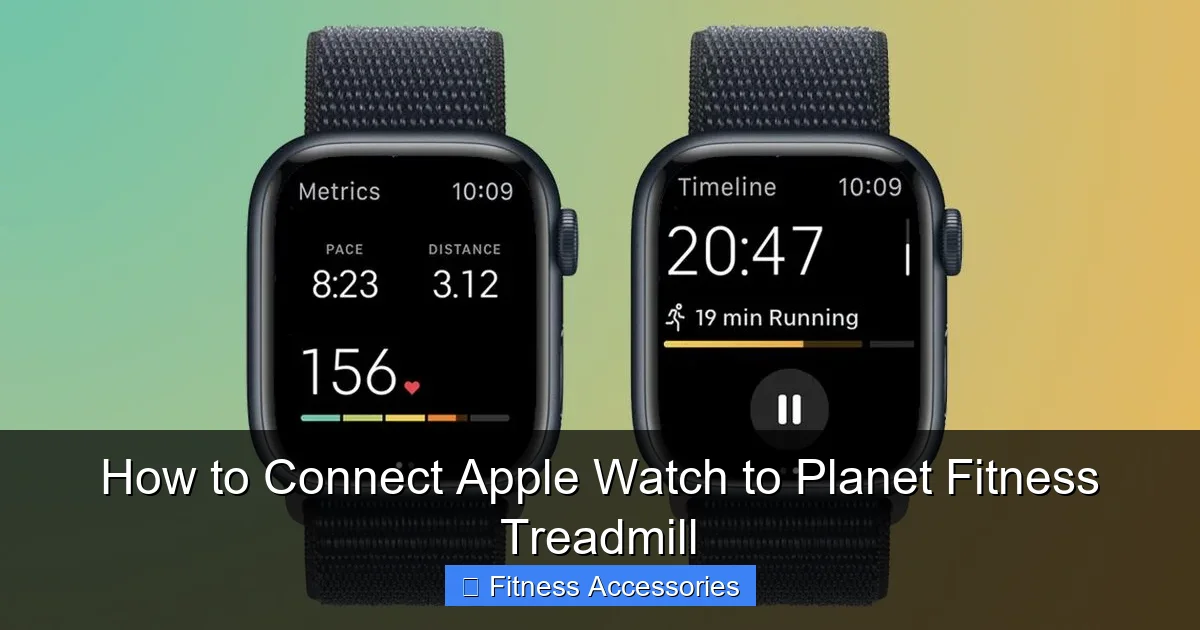
Visual guide about How to Connect Apple Watch to Planet Fitness Treadmill
Image source: cdn.mos.cms.futurecdn.net
Step 1: Prepare the Treadmill and Your Watch
First, get onto the treadmill and power it on using the console. Stand on the side rails, not the belt. On your Apple Watch, you need to access its Bluetooth settings quickly. The fastest way is to press the Digital Crown to see your app grid, then tap the Settings gear icon. Alternatively, you can open the Settings app directly from your watch face via the Dock (press the side button). Once in Settings, scroll down and tap Bluetooth. Ensure the toggle at the top is green/on. Your watch will now start scanning for nearby Bluetooth devices. This scanning process usually takes 10-30 seconds. You should see a spinner or a list of “Other Devices” populating.
Step 2: Initiate Pairing from the Watch
Here’s the crucial part: you are pairing from your watch to the treadmill, not the other way around. Do not try to find your watch on the treadmill’s screen—most treadmills don’t have that functionality. While standing on the side rails, look at your watch’s Bluetooth screen. After a few seconds, you should see an entry appear that corresponds to the treadmill brand. Common names include “Life Fitness,” “Precor,” “LF-Connect,” or sometimes a series of numbers/letters. It will typically appear under a section labeled “Other Devices.” Tap on this name. Your watch will attempt to pair. You might see a connecting icon. On some newer systems, you may see a 4-digit PIN code appear on the treadmill’s screen. If this happens, look at your watch—it should prompt you to “Enter PIN.” Use the watch’s keypad to type the code shown on the treadmill, then tap “Pair.” This two-step verification ensures a secure link.
Step 3: Confirm the Connection
Once paired, the treadmill’s name will move from “Other Devices” to the “My Devices” or “Connected” list at the top of your watch’s Bluetooth screen. It will show a “Connected” status. On the treadmill console, you might also see a small Bluetooth icon light up or a message like “Device Connected” or a heart icon appear. This visual confirmation from both devices is your green light. Do not start your workout yet. The pairing is done, but the data streaming (especially heart rate) only activates when a compatible workout is running on your watch.
Step 4: Start Your Workout on the Apple Watch
Now, exit the Settings app on your watch. Press the Digital Crown to return to the watch face. Open the native “Workout” app (the green one with a running figure). Scroll through the workout types. The correct one to use is “Indoor Run.” Even though you’re on a treadmill, using “Indoor Run” tells your watch to use its internal sensors (accelerometer, heart rate) and calibrate based on the connected external data. Do not use “Outdoor Run,” as that forces GPS tracking, which is irrelevant indoors and can cause data conflicts. Tap “Indoor Run.” Set your goals (time, distance, calories) or tap the gray “Start” button to begin immediately. Once the workout starts, look at the top of the workout screen. You should see a small heart icon with a line next to it (this indicates external heart rate data is being received). Your watch’s heart rate reading should now match the one displayed on the treadmill’s console, confirming the live data stream is active.
Step 5: Run and Let Data Flow
You’re all set! Begin running. Your pace, distance, and heart rate will be captured by both the treadmill and your watch, but the watch is now the master recorder for your personal Health data. The treadmill is essentially a sensor hub. Your watch will display your metrics. When you finish your run, firmly press the side button and digital crown simultaneously to pause, then swipe right to end the workout. You’ll get a summary on your watch. The magic happens next: when you return to your locker and your watch reconnects to your iPhone (via Bluetooth and/or Wi-Fi), the complete workout data—including the heart rate graph, exact distance, and active energy—will automatically sync to the Fitness app on your iPhone and the Health app. You will see it listed as an “Indoor Run” with the date, time, and all metrics. No manual entry required.
Troubleshooting Common Connection Issues
Even with perfect instructions, technology can be finicky. Bluetooth, in particular, can be moody. If your Apple Watch isn’t finding the treadmill or the connection drops, don’t panic. Here is a systematic troubleshooting guide, from quick fixes to more involved steps.

Visual guide about How to Connect Apple Watch to Planet Fitness Treadmill
Image source: treadmillvibe.com
Issue: “Treadmill Not Appearing in Bluetooth List”
This is the most common hurdle. First, double-check that the treadmill is actually powered on. Some models enter a low-power state if idle for too long. Press any button on the console. Next, ensure you are standing right next to the treadmill’s console when scanning. Bluetooth range is short, and gym equipment can have antennas in specific spots. Move closer. If it still doesn’t appear, the treadmill’s Bluetooth module might be turned off or in a “discoverable” mode only for its own brand’s app. Try power-cycling the treadmill: turn it off at the console or via any visible power switch, wait 30 seconds, and turn it back on. As it boots, immediately start scanning for devices on your watch. Sometimes the Bluetooth broadcast only happens during the startup sequence.
Issue: “Pairing Request Failed” or “Cannot Connect”
If the name appears but connection fails, the watch and treadmill might be using a slightly different Bluetooth profile. The most effective fix is to “forget” the device and start fresh. On your Apple Watch, go to Settings > Bluetooth. Find the treadmill’s name in your “My Devices” list (if it partially connected) or “Other Devices.” Tap the small “i” icon next to it, then tap “Forget This Device.” Confirm. Now, go back to the main Bluetooth screen and restart the scanning process from Step 2. This clears any corrupted pairing handshake. Also, ensure your Apple Watch is not already connected to another Bluetooth audio device (like wireless gym headphones) that might be monopolizing the connection. Disconnect other audio devices temporarily during the pairing attempt.
Issue: “Heart Rate Not Transmitting / Shows ‘–‘”
This is frustrating: the devices are paired, but no heart rate data flows. First, check the treadmill’s console. Does it show a heart rate reading? If the treadmill itself isn’t detecting a signal (it usually requires you to hold the metal sensors on the console), then there’s nothing to transmit. For the treadmill to send heart rate data to your watch, you must be in physical contact with its heart rate sensors. On most Planet Fitness treadmills, these are two silver metal grips on the console. You need to place both hands on them firmly, with skin contact (no gloves). The treadmill reads your cardiac signal and then broadcasts it via Bluetooth. Once you’re holding the sensors, the heart icon on your watch should activate within 10-15 seconds. If it doesn’t, re-confirm the connection is still live in your watch’s Bluetooth settings. The connection can sometimes drop after the initial pairing if you move too far away before starting the workout.
Issue: “Connection Drops Mid-Workout”
If the Bluetooth link severs while you’re running, it’s usually a range or interference issue. The antenna in the treadmill console is not incredibly powerful. Maintain a consistent position within 3-5 feet of the console. If your treadmill is in a crowded row, other Bluetooth signals (from other members’ devices or the gym’s Wi-Fi) can cause interference. There’s little you can do about this, but you can try ending the workout and re-pairing. Sometimes a simple restart of the Apple Watch (press and hold the side button, slide to power off, wait 30 seconds, press side button again to restart) can reset its Bluetooth radio and provide a more stable link for the next session.
When All Else Fails: Update and Reset
Software is the foundation of connectivity. Ensure your Apple Watch is on the latest version of watchOS. Apple frequently releases updates that improve Bluetooth compatibility and stability. Connect your watch to its charger and to Wi-Fi (via your iPhone) to download and install updates. As a last resort on the watch side, you can reset network settings: go to Settings > General > Transfer or Reset Apple Watch > Reset. Choose “Reset Network Settings.” This will forget all Wi-Fi and Bluetooth pairings, so you’ll need to re-pair with your iPhone and any other devices afterward. On the treadmill side, there is no user-reset function. If a treadmill consistently fails to connect for multiple members, it may have a hardware fault. Report it to Planet Fitness staff so they can log a service request with their equipment vendor.
Alternative Methods and Workarounds
What if your specific treadmill model at Planet Fitness doesn’t have Bluetooth, or the connection is perpetually unreliable? Don’t worry; you still have excellent options to get your Apple Watch data into your fitness records. The goal is to have a complete log of your gym session in your Apple Health and Fitness apps.
Using the “Indoor Run” Workout Manually (No Treadmill Sync)
This is the simplest fallback. You can simply start an “Indoor Run” workout on your Apple Watch while on any treadmill, regardless of its connectivity. Your watch will use its internal accelerometer to estimate distance and pace. It will also record your heart rate continuously from its own optical sensor on your wrist. The accuracy of distance and pace will be slightly less precise than a treadmill’s calibrated belt or a GPS outdoor run, but for most users, it’s perfectly acceptable for tracking trends and calorie burn. The key is to be consistent. Start the workout when you begin running and end it when you stop. This data will sync to your apps just like a connected workout. The major downside is you lose the exact distance the treadmill’s computer calculates, and you can’t see your watch’s metrics on the large console screen for easy viewing.
Leveraging Third-Party Apps and Gym Integrations
Some fitness ecosystems offer deeper integrations. For instance, if you are a member of a gym that uses the Preva fitness tracking system (common in some larger chains, less so in Planet Fitness), you might be able to link your Apple Health account to Preva. However, Planet Fitness primarily uses its own PF Black Card member app and does not have a widespread, official Apple Health integration for equipment data sync. Another workaround involves apps like RunGap (for iOS) that can act as a bridge, allowing you to manually export a treadmill workout (if you record it on a separate device) and import it into Apple Health. But for the average Planet Fitness member, this is overly complex. The native “Indoor Run” on the watch is the most reliable third-party-free method.
Manual Entry After the Fact
If you forget to start your watch or the connection fails and you’ve already completed your run, all is not lost. You can manually add the workout to your Apple Health and Fitness apps. Open the Health app on your iPhone. Tap Browse > Activity > Workouts. Tap the “+” button in the top right corner. You can then input the type (“Indoor Run”), date, time, distance (from the treadmill’s display), and calories burned (also from the treadmill). You cannot manually input a detailed heart rate graph, but you can add an average heart rate if you recall it. This keeps your activity rings and workout history complete, though it lacks the rich, automatic data of a synced session. It’s a good backup plan, but the automatic connection is vastly superior.
The Tangible Benefits of a Successful Sync
You might be thinking, “Is this extra step really worth it?” The answer is a resounding yes, especially if you use your Apple Watch as your central health dashboard. The benefits extend far beyond mere convenience.
Complete and Accurate Health Data
Apple’s Health app is a powerful repository for all your bodily metrics. When your treadmill workouts sync automatically, they fill in a critical piece of the puzzle: your cardio data from structured, steady-state exercise. This data—particularly the heart rate zones you spent time in (resting, fat burn, cardio, peak)—feeds directly into your overall cardiovascular health metrics. Your “Resting Heart Rate” trend, your “Heart Rate Variability” (HRV), and your “VO2 Max” estimates all become more accurate with a consistent stream of diverse heart rate data. Manual entry or missing workouts create gaps that dilute these long-term trends. A synced treadmill run ensures your Health app sees you had a vigorous, sustained cardio session, contributing properly to your activity rings and health insights.
Elimination of Manual Logging
Let’s be honest: after a tough run, the last thing you want to do is fish your phone out of your armband, open an app, and type in distance and calories. Automation is the ultimate fitness hack. The seamless sync removes this friction entirely. The moment your watch reconnects to your phone post-workout, the data appears in the Fitness app’s “Summary” tab and in the Health app. You get a beautiful, detailed workout summary with graphs and splits, just like an outdoor run. This consistent, effortless logging dramatically increases your adherence to tracking, which is a proven factor in long-term fitness success. When tracking is easy, you do it. When it’s hard, you don’t.
Enhanced Workout Analysis and Motivation
With complete data, you can analyze your performance over time. In the Fitness app on your iPhone, you can compare this treadmill run to your last one. Did your average heart rate for the same pace drop? That’s a sign of improved fitness. Are you burning more calories at the same speed? Great progress. This data-driven feedback is incredibly motivating. Furthermore, your Activity Rings (Move, Exercise, Stand) will close more accurately based on the actual intensity of your gym session. A high-intensity interval run on the treadmill that gets your heart rate soaring will properly contribute to your “Exercise” ring minutes, giving you a truer picture of your daily effort. Seeing those rings close thanks to a gym session feels just as rewarding as closing them after a bike ride or a swim.
Conclusion: Making the Gym Gym-Connected
Connecting your Apple Watch to a Planet Fitness treadmill bridges the gap between your personal wearable technology and the gym’s stationary equipment. It transforms a simple run into a fully integrated data point in your broader health narrative. While the process requires a few extra seconds of setup before you start running—enabling Bluetooth, finding the device name, pairing—the payoff is a lifetime of automatic, accurate, and insightful fitness tracking. Remember the core sequence: Bluetooth on first, pair from the watch, start an Indoor Run. Arm yourself with the troubleshooting steps for those rare moments of tech stubbornness, and always have the manual “Indoor Run” as a reliable backup. By mastering this connection, you’re not just logging a workout; you’re investing in a more complete, motivational, and data-driven fitness journey. So next time you’re at Planet Fitness, take those 30 seconds to sync up. Your future self, reviewing a perfectly filled-out month of activity in the Health app, will thank you.
Frequently Asked Questions
Do all Planet Fitness treadmills support Bluetooth connection with Apple Watch?
No, not all models do. Most modern Life Fitness and Precor treadmills in Planet Fitness clubs (typically from the last 5-7 years) have Bluetooth connectivity. Look for a Bluetooth symbol on the console. Older models may lack this feature. If unsure, ask a staff member or try the scanning process; if the treadmill doesn’t appear in your watch’s Bluetooth list, it likely isn’t compatible.
Why won’t my Apple Watch find the treadmill in its Bluetooth settings?
First, ensure the treadmill is powered on and you are standing right next to its console. Try power-cycling the treadmill (turning it off and on again). If it still doesn’t appear, the treadmill’s Bluetooth module may be disabled or faulty. Also, make sure your Apple Watch’s Bluetooth is on and you are scanning in the Settings app, not the Control Center, for a full device search.
Can I connect my Apple Watch to multiple Planet Fitness treadmills?
Yes. Your Apple Watch can remember multiple Bluetooth devices. You will need to pair it with each new treadmill you use the first time you encounter it. Once paired, it should automatically reconnect to that specific treadmill whenever you use it again, provided no other device has taken its spot. You can manage paired devices in your watch’s Bluetooth settings.
Will my heart rate from the treadmill be more accurate than my Apple Watch’s wrist sensor?
For steady-state running on a treadmill, the chest strap-style sensors built into the treadmill’s hand grips are generally considered the gold standard for accuracy because they measure electrical signals directly from your heart (ECG-accurate). The Apple Watch’s optical sensor is very good but can be slightly less accurate during rapid wrist movements or if the fit is loose. If you need clinical-grade heart rate data, using the treadmill’s sensors via Bluetooth is the best method.
What if I accidentally start my workout before connecting?
You can still connect mid-workout. With your “Indoor Run” already started on your watch, go to Settings > Bluetooth and try to pair with the treadmill. Once connected, the heart rate data should begin flowing, and you’ll see the heart icon activate. However, the distance and pace for the portion of the run before connection will have been calculated by your watch’s internal sensors, not the treadmill’s belt. For the most accurate, unified data, it’s best to pair first.
Does this connection drain my Apple Watch battery faster?
Yes, but minimally. Using Bluetooth to connect to an external sensor and maintaining a constant heart rate stream uses slightly more power than the watch running alone. The primary battery drain during a treadmill run is still the display, the workout tracking itself, and the heart rate sensor. You might see 1-3% more battery usage over a 45-minute run compared to a disconnected indoor run. It’s a small trade-off for the rich data you gain.