Yes, your iPhone can track steps on a treadmill, but it’s not as simple as just setting it down. The device relies on its accelerometer and motion coprocessor to detect the rhythmic motion of walking or running. However, because a treadmill is stationary and lacks the natural arm swing and GPS movement of outdoor walking, the iPhone’s step count can be inaccurate without proper calibration and technique. To get reliable data, you must understand how your phone senses movement, calibrate it correctly for your stride, and often use specific placement or third-party apps. Consistency in your method is key to turning your iPhone into a trustworthy treadmill workout companion.
You’ve just finished a solid 30-minute jog on the treadmill. You feel the burn, you’re sweaty, and you’re ready to see your stats. You pull out your iPhone, open the Fitness or Health app, and… wait. Is that step count right? It feels low. Or maybe it’s suspiciously high. The question nags at you: Can my iPhone track my steps on a treadmill accurately? It’s a common dilemma for indoor exercisers who rely on their phone as their primary fitness tracker. The short answer is: Yes, it can, but with significant caveats and required user intervention. Your iPhone is a powerful piece of technology packed with sensors, but it’s fundamentally designed for the real world—a world full of GPS movement, variable terrain, and natural arm swing. The controlled, stationary environment of a treadmill breaks some of its core assumptions. Let’s dive deep into the mechanics, the pitfalls, and the precise strategies you can employ to transform your iPhone from a guesswork device into a reliable treadmill step-counter.
This isn’t about buying a new gadget; it’s about understanding the one you already own. By the end of this guide, you’ll know exactly how your iPhone “sees” your treadmill workout, why it sometimes gets it wrong, and the step-by-step process to calibrate and position it for maximum accuracy. We’ll also look at when your iPhone is sufficient and when you might want to consider a dedicated wearable. Think of this as your complete user manual for indoor step tracking with an iPhone.
Key Takeaways
- iPhone uses motion sensors: Your iPhone tracks steps primarily via its built-in accelerometer and the M-series motion coprocessor, which detects the rhythmic oscillation of your body during walking.
- Treadmills present a unique challenge: The lack of GPS movement and often reduced arm swing can confuse the phone’s algorithms, leading to undercounting or overcounting steps.
- Calibration is essential: You must manually calibrate your iPhone’s stride length for treadmill use within the Health or Fitness app to translate motion into accurate step and distance data.
- Phone placement matters: Holding the phone in your hand or securing it to your arm (not in a pocket on a moving leg) provides the most consistent motion data for the sensors to read.
- Third-party apps can help: Apps like Strava, Nike Run Club, and even the built-in Fitness app have specific modes or settings for treadmill workouts that can improve tracking logic.
- Consistency yields better data: Using the same phone placement, arm swing motion, and calibration settings for every treadmill session will produce more reliable and comparable step counts over time.
- A wearable is often more accurate: For dedicated treadmill tracking, an Apple Watch or other fitness tracker with a dedicated heart rate sensor and optimized algorithms typically provides superior accuracy over an iPhone alone.
📑 Table of Contents
- How Your iPhone “Sees” Your Movement: The Tech Inside
- The Treadmill Problem: Why Stationary Walking is Tricky
- Calibration: The Single Most Important Step for Accuracy
- Optimizing Your Technique: Placement and Motion
- Leveraging Third-Party Apps for Better Treadmill Tracking
- iPhone vs. Wearable: When to Upgrade Your Tracking
- Putting It All Together: Your Action Plan for Accurate Treadmill Steps
How Your iPhone “Sees” Your Movement: The Tech Inside
To solve the treadmill problem, we first need to understand the tool. Your iPhone isn’t just counting steps with a simple pendulum. It’s running a sophisticated sensor fusion algorithm. The star of the show is the accelerometer, a tiny chip that measures acceleration forces in three axes (X, Y, Z). When you walk, your body creates a characteristic, rhythmic pattern of acceleration and deceleration with each step.
The Motion Coprocessor: The Silent Workhorse
Since the iPhone 5s, Apple has included a separate, low-power chip called the M-series motion coprocessor (M7, M8, M9, M10, M11, M12, or later). This chip’s sole job is to collect data from the accelerometer, gyroscope, and compass continuously, even when your main processor is asleep. It filters the raw data, identifies step-like patterns, and passes only the relevant information—like step count, distance, and floors climbed—to the main iOS and the Health app. This is incredibly power-efficient, allowing your phone to track your movement 24/7 without destroying your battery. For treadmill use, this coprocessor is trying to recognize a walking pattern from data that lacks the forward momentum (GPS) and sometimes the pronounced arm swing it expects.
Stride Length: The Critical Missing Link
The accelerometer detects motion, but it doesn’t inherently know distance. To calculate how far you’ve walked, iOS uses a simple formula: Step Count x Stride Length = Distance. Your iPhone determines your average stride length in two ways: 1) By using your height (from your Health profile) as a baseline, applying a standard formula, or 2) Through calibration during outdoor walks or runs where it can use GPS to verify actual distance and then back-calculate your precise stride. This is the first critical point: if your iPhone has never been calibrated for your specific walking or running gait, its distance and step estimates are based on population averages and your height, which can be off by 10-20% or more. On a treadmill, where distance is fixed and known (the belt’s measurement), this calibration becomes your most powerful tool for accuracy.
The Treadmill Problem: Why Stationary Walking is Tricky
Now we arrive at the core issue. Your iPhone excels at tracking you moving through the physical world. A treadmill disrupts two key elements of that scenario.
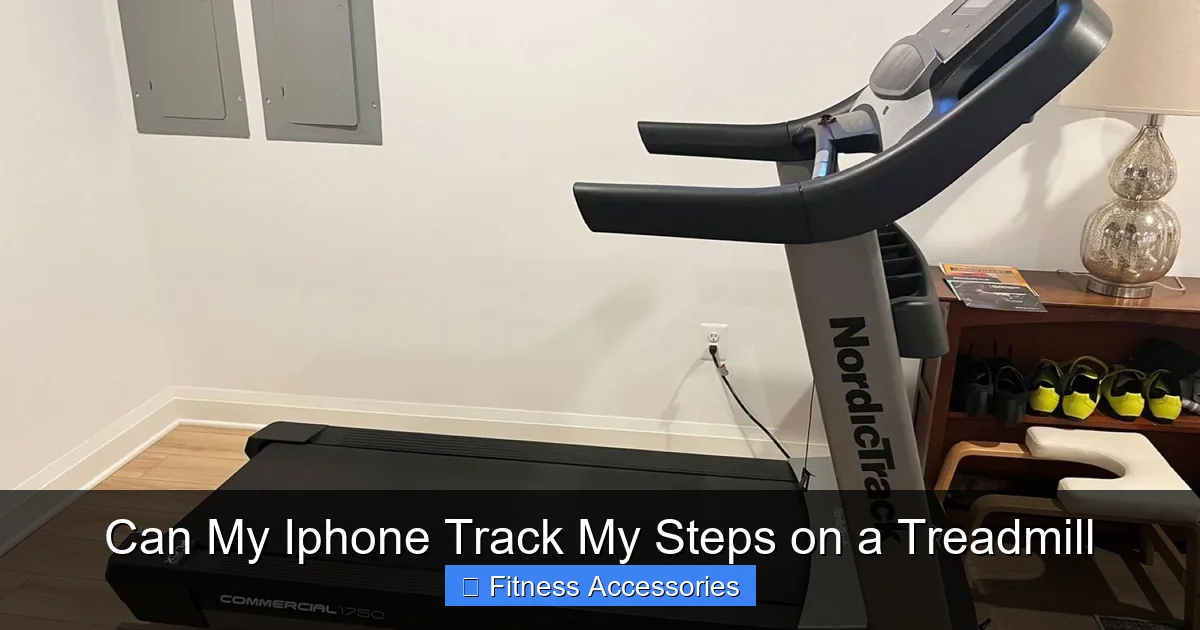
Visual guide about Can My Iphone Track My Steps on a Treadmill
Image source: runningshorts.com
The Absence of GPS Movement
When you walk outside, your iPhone’s GPS confirms you’re covering ground. The step-counting algorithm uses this GPS data as a “ground truth” to sanity-check its motion sensor data. On a treadmill, GPS shows zero movement. The algorithm is essentially flying blind, relying 100% on the accelerometer pattern. Any minor, non-walking motion—shifting your weight, adjusting your grip, even the vibration of the belt—can be misread as steps or, conversely, the smooth, repetitive motion of the treadmill can be so consistent that the algorithm might fail to detect individual steps if your motion is too constrained.
The Arm Swing Factor
This is arguably the biggest variable you control. Natural walking involves a pronounced, opposite-arm-to-leg swing. This swing creates a significant, rhythmic lateral (side-to-side) acceleration pattern that the accelerometer easily picks up. On a treadmill, many people hold onto the handrails, rest their hands on the console, or keep their arms stiff and close to their body to maintain balance or hold a phone. This drastically reduces or eliminates the arm swing signal. The iPhone then receives a much weaker, less distinctive motion pattern from your torso and legs alone, making it harder to distinguish walking steps from other slight movements. If your arms aren’t swinging, your iPhone is working with half the data it expects.
Calibration: The Single Most Important Step for Accuracy
If you only take one thing from this article, make it this: Calibrate your iPhone for treadmill use. Calibration is the process of teaching your iPhone what your specific stride length is for walking and running. Since a treadmill gives you a known, precise distance (e.g., you run 1 mile on the belt), you can use that to create a perfect custom stride profile.

Visual guide about Can My Iphone Track My Steps on a Treadmill
Image source: runningshorts.com
Step-by-Step Calibration for Treadmill Workouts
You need to perform a calibration walk or run outdoors first. Apple’s system requires GPS to create the calibration data. Here’s the exact process:
- Prepare Your Profile: Open the Health app > Browse > Body Measurements > Height. Ensure your height is entered correctly. This is the starting point.
- The Outdoor Calibration Walk/Run: Find a flat, measured outdoor route (a running track is perfect, or use a known distance on a path). Open the Workout app on your iPhone (or the Fitness app if you have an Apple Watch, but we’re doing iPhone-only for now). Choose an Outdoor Walk or Outdoor Run. Walk or run the exact, known distance at your normal pace. Do NOT hold your phone rigidly; swing your arms naturally as you would outdoors. Let the workout complete.
- Verify and Apply: After the workout, open the Health app. Go to Browse > Activity > Walking + Running Distance. Tap on the specific workout. You will see two numbers: the iPhone’s calculated distance and the actual distance you know you covered. The difference is your current error margin. The magic happens next time you do an Indoor Walk or Indoor Run on a treadmill. iOS will now use your newly calibrated stride length from the outdoor workout to convert the treadmill’s motion data into steps and distance. It will apply your personal stride, not the generic one based on height.
Pro Tip: Do this calibration for both a walk and a run pace if you use the treadmill for both. Your stride length differs between the two gaits.
What If I Can’t Go Outdoors?
If you truly cannot perform an outdoor calibration (e.g., mobility issues, weather), your next best option is manual adjustment. Some third-party apps (like Strava or Runkeeper) allow you to manually set your stride length in their settings. You can estimate it: a common formula is Height x 0.415 = Walking Stride (meters) or Height x 0.413 = Running Stride (meters). Measure your height in centimeters, calculate, and input that value. It’s less accurate than GPS calibration but better than the default. Alternatively, you can do a known-distance treadmill workout (e.g., run 1 mile as shown on the treadmill console), note the iPhone’s reported distance in the Health app, and then use a simple ratio to mentally adjust your expectation of the step count. (If the treadmill says 1 mile, but your iPhone says 0.8 miles, your step count is likely about 20% low).
Optimizing Your Technique: Placement and Motion
Calibration sets the baseline, but your real-world technique on the treadmill determines if the sensors get a clean signal. This is where you take control.
Visual guide about Can My Iphone Track My Steps on a Treadmill
Image source: is1-ssl.mzstatic.com
The Golden Rule: Mimic Outdoor Walking
The iPhone’s algorithm is optimized for the outdoor gait cycle. Your goal is to make your indoor gait as close to that as possible. This means swinging your arms naturally. Even if you’re holding your phone, hold it loosely in one hand and let your other arm swing freely. If you must hold the handrails for balance, try to release them for short intervals, even 30 seconds at a time, to allow a more natural gait pattern that the phone can detect. The more you constrain your upper body, the worse the data will be.
Phone Placement: Pocket vs. Hand vs. Armband
- Hand (Best for accuracy): Holding the phone in your hand, with your arm swinging, provides the clearest motion signal. The accelerometer in the phone experiences the most pronounced and clean oscillation. The downside is it can be awkward or distracting.
- Armband (Very Good): Securing the phone to your upper arm (bicep or forearm) is an excellent compromise. It keeps the phone stable on a moving limb, captures the arm swing motion directly, and leaves your hands free. Ensure the band is snug but not restrictive.
- Pocket (Worst for treadmill accuracy): This is the most common but least accurate placement for treadmill tracking. The phone is on a leg that is moving in a pendulum arc. The motion is different from the torso/arm swing pattern the algorithm expects. Additionally, the phone can jostle, creating noise. It might work okay for a steady, long walk, but for running or interval training, expect significant inaccuracies.
- Waist Pack/Fanny Pack: Similar to a pocket, but often more stable. Still, it’s on the hip, not the torso, and may not capture the ideal signal. Better than a floppy pocket, worse than an arm.
Leveraging Third-Party Apps for Better Treadmill Tracking
The built-in Fitness and Health apps are capable, but they are generalists. Many third-party apps are built by runners, for runners, and have specific features to combat the treadmill tracking problem.
Apps with Treadmill-Specific Modes
Apps like Strava, Nike Run Club (NRC), Runkeeper, and MapMyRun all have an “Indoor Run” or “Treadmill” workout type. When you select this, they often:
- Weight the accelerometer data more heavily and de-prioritize the absent GPS.
- Allow you to easily input the treadmill’s displayed distance and/or pace after the workout, which they then use to fine-tune your profile.
- Some, like NRC, have audio coaching that can remind you to maintain a consistent effort and arm swing.
Strava’s “Treadmill” mode is particularly useful because it lets you manually enter the distance and time from the treadmill console. It then uses that data to calculate your average pace and splits. While this doesn’t change the raw step count from your phone, it corrects the distance, which in turn helps your overall fitness metrics (like estimated calories) become more accurate. For step count specifically, you are still reliant on your phone’s sensor data, but a consistent app that you always use for treadmill sessions helps create a uniform dataset.
The Power of Post-Workout Editing
Don’t underestimate the manual edit function. After your treadmill workout, check the workout details in your chosen app. If the distance is clearly wrong (e.g., you ran 3 miles but the app says 2.4), use the edit feature to input the correct distance from the treadmill console. This corrects the derived metrics (pace, calories) and, over time, helps the app learn your typical treadmill pace. For step count, if you know you took roughly 4,000 steps for that 3-mile run (a common average), and your phone only recorded 3,200, you now know your typical error rate for that specific setup. Consistency in your correction method can help you interpret your raw data better.
iPhone vs. Wearable: When to Upgrade Your Tracking
This is the inevitable follow-up question. If you’re serious about treadmill training, is your iPhone enough, or should you get an Apple Watch or Fitbit?
The Apple Watch Advantage
The Apple Watch is, without question, superior for treadmill accuracy. Why?
- Dedicated, Optimized Algorithms: watchOS has treadmill-specific workout algorithms that are more aggressive and refined than iOS’s general-purpose tracking. It’s designed to be on your wrist, where it experiences a cleaner, more consistent motion signal directly attached to the moving limb.
- Heart Rate Integration: The watch uses continuous heart rate data to validate workout intensity and duration. If your heart rate is elevated in a running pattern but your step count is low, the system may adjust or flag the data. This creates a more holistic picture.
- Wrist-Based Motion: The wrist naturally swings during walking/running. Placing the sensor here is biomechanically ideal for detecting the gait cycle. It’s less affected by how you hold your arms.
- Automatic Treadmill Detection: Later watchOS versions can often detect you’re on a treadmill (via the repetitive motion pattern and lack of GPS) and prompt you to start an Indoor Run workout.
In independent tests, an Apple Watch typically matches or comes within 2-5% of the treadmill’s measured distance for running, and similarly for steps. An iPhone in a pocket can easily be 10-25% off.
The Practical Verdict
If you use the treadmill occasionally (1-2 times a week) and are okay with approximate data for casual step goals, a well-calibrated iPhone in your hand or on an armband is perfectly adequate. You can achieve reasonable accuracy. If you are training for a race, meticulously tracking mileage for a plan, or using step count as a key health metric, the investment in an Apple Watch (or a dedicated running watch like Garmin) is highly recommended. The accuracy jump is significant and worth the cost for serious athletes.
Putting It All Together: Your Action Plan for Accurate Treadmill Steps
Okay, theory is over. Here is your concrete, actionable checklist for your next treadmill session.
- Calibrate Outdoors First: Perform the outdoor walk/run calibration as described above. Do this once every few months or if you feel your indoor counts are drifting.
- Choose Your Placement: Decide: hand or armband. Commit to it for at least a week to establish consistency. Avoid the pocket.
- Mind Your Arms: Consciously swing your arms. If holding the phone, switch hands halfway through your workout to balance any potential bias.
- Use the Right App Mode: Always start an “Indoor Walk” or “Indoor Run” workout in the Fitness app or your third-party app of choice. Do NOT just let background tracking happen; start an active workout.
- Note the Treadmill’s Stats: Keep a mental note (or a small notebook) of the treadmill’s displayed distance and time. After your workout, compare it to your phone’s data in the Health app. This will tell you your personal accuracy percentage for that session.
- Be Consistent: Use the same phone, same placement, same arm swing technique, and same app every time. Consistency is the enemy of random error.
- Consider the Big Picture: Look at weekly and monthly trends in your step count rather than obsessing over a single workout’s precision. The trend will be valuable even if individual sessions have 5-10% noise.
Your iPhone is a remarkable fitness tool. It can absolutely track your treadmill steps, but it’s a partnership. You provide the consistent, natural gait and the calibration data. It provides the relentless counting. By understanding the “why” behind the inaccuracies and implementing these simple techniques, you can trust the numbers on your screen. You’ll turn that daily treadmill walk or run into a truly quantified, goal-oriented part of your fitness journey, all without buying another gadget. Now, go get those steps—accurately!
Frequently Asked Questions
Will my iPhone track treadmill steps if it’s just in my pocket?
It will track, but with low accuracy. The pocket placement on a moving leg provides a weaker and less ideal motion signal than a hand or arm. Expect significant undercounting or overcounting, especially at running speeds. For best results, avoid the pocket.
Do I need to swing my arms for my iPhone to count steps on a treadmill?
Yes, natural arm swing is highly recommended. The arm swing creates a strong, rhythmic lateral motion that is a primary signal the iPhone’s algorithm looks for to confirm a walking or running gait. Holding onto rails or keeping arms stiff greatly reduces accuracy.
How do I calibrate my iPhone for treadmill use?
You must first perform an outdoor walk or run of a known distance using the Workout app. This teaches your iPhone your personal stride length. Then, for future indoor treadmill workouts, your iPhone will use that custom stride to convert motion into distance and steps. Calibration must be done outdoors with GPS.
Will using my iPhone on a treadmill drain the battery quickly?
Using the Fitness app to record a workout with GPS off (for indoor use) is relatively power-efficient, as the motion coprocessor handles most of the work. However, having the screen on and the app active will consume more battery than idle tracking. A 1-hour treadmill workout might use 5-10% of your battery, which is normal.
Is an iPhone more accurate than an Apple Watch for treadmill tracking?
No. An Apple Watch is significantly more accurate for treadmill workouts. Its algorithms are optimized for wrist-based motion, it uses heart rate data for context, and its placement on the swinging arm provides a superior signal. The iPhone is a good secondary tracker, but the Watch is the primary tool for this job.
Can I use my iPhone’s GPS to track a treadmill workout?
No. GPS requires movement through physical space to get a satellite lock. On a stationary treadmill, GPS will show no movement and no distance. Treadmill tracking relies entirely on the accelerometer and your calibrated stride length. Always select an “Indoor” workout type, which disables GPS reliance.